#
🗄️ Working with Check Services
A NetCheckService is the runtime “worker” that repeatedly uses a NetCheckMethod to actually perform connectivity checks and keep track of the results for you.
Services run the checks, measure how long it took, remember the last status/error, and notify you when things change.
They are basically stateful check runners that you can configure to run checks on demand, on start, or continuously at a set interval. All network checking is done through services.
Services are tracked by the NetCheckServiceRegistry, so you can always get a reference to any active service by its id.
#
🔧 Creating services
In order to start any network checks, you first need to create a NetCheckService instance.
Services use a NetCheckMethod to perform the actual checks, so you need to provide one when creating a service.
You can create services either through the EazyNetChecker static facade, or by using the NetCheckServiceFactory instance directly if you are using dependency injection or have a reference to it.
var method = EazyNetChecker.GetMethod("google204");

// Using the static facade
var service = EazyNetChecker.CreateService(
    id: "MyService",
    method: method,
    intervalSeconds: 5,
    timeoutSeconds: 10);

// Or using the service factory instance
var service = serviceFactory.CreateService(
    id: "MyService",
    method: method,
    intervalSeconds: 5,
    timeoutSeconds: 10);
You can also create a service using the default method, if you don't need a specific one:
// Using the static facade
var service = EazyNetChecker.CreateService(
    intervalSeconds: 5,
    timeoutSeconds: 10);

// Or using the service factory instance
var service = serviceFactory.CreateService(
    intervalSeconds: 5,
    timeoutSeconds: 10);
You can create multiple services, each using different methods and settings, to monitor different endpoints or services in parallel if you need to.
You can assign a custom label to your service, to help you identify it later, or to find it easily in the editor diagnostics window.
Just call myService.SetLabel("My awesome service") any time after creating it.
Clean up your messes
Services are never automatically destroyed, in case you need to use them again later.
Make sure to destroy any services you no longer need by calling myService.Teardown().
#
Service runner component
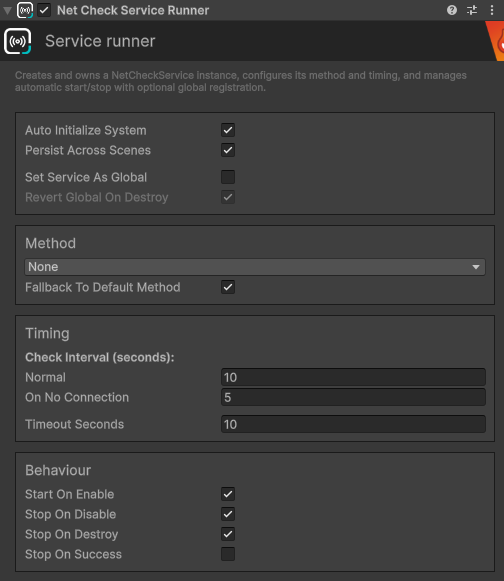
If you prefer, you can use the EazyNetCheckerServiceRunner component to create and run a service, without having to write any code.
Just add the component to a GameObject in your scene, assign the method you want to use, and configure the settings in the inspector.
#
📁 Accessing services
All services are tracked by the service registry (INetCheckServiceRegistry), so you can always get a reference to any active service by its instance id (make sure to keep track of the ids you might need later).
// Using the static facade
var myService = EazyNetChecker.ServiceRegistry.GetService(myServiceInstanceId);

// Using the service registry instance
var myService = serviceRegistry.GetService(myServiceInstanceId);
You can also iterate over all active services through the service registry:
foreach(var service in EazyNetChecker.ServiceRegistry.IterateServices())
{
    Debug.Log($"Service {service.Id} - Status: {service.CurrentStatus}");
}
#
🚀 Using services
Once you have a reference to a NetCheckService, you can start using it to run checks and monitor connectivity status.
You can start and stop continuous checking, run manual checks, and subscribe to events to get notified of status changes.
A service can only run one check at a time. If you try to start a new continuous check while one is already running, the new request will be ignored. However, if you attempt to start a single check while a another check is already running, the previous check will be cancelled and the new one will start immediately.
#
Running continuous checks
Continuous checks will run automatically at the configured interval. When a check is done, the service will wait until the next interval before starting a new check. Continuous checks will keep running until you stop them or teardown the service.
myService.StartContinuousChecks();To react to status changes, you can subscribe to the following events:
myService.OnCheckStarted += () =>
{
    Debug.Log("Check started");
};

myService.OnCheckCompleted += (result) =>
{
    Debug.Log($"Check completed - Status: {result.Status}");
};

myService.OnNetStatusChanged += (newStatus) =>
{
    Debug.Log($"Status changed to: {newStatus}");
};

myService.OnCheckCancelled += () =>
{
    Debug.Log("Check was cancelled");
};
#
Running a single check
A single check will run once immediately. If another check is already running, it will be cancelled first.
There are various ways to run and wait for a single check, depending on your needs:
// Run it as a normal method (non-blocking), and handle the result in a callback
myService.RunSingleCheck(checkFinishedCallback)

// Run it as an async method and await the result
NetCheckResult result = await myService.RunSingleCheckAsync();

// Run it as a coroutine, and handle the result in a callback
yield return myService.RunSingleCheckRoutine(checkFinishedCallback));

// Run it as a coroutine, and get the result from the enumerator result object
NetCheckEnumeratorResult enumeratorResult = new NetCheckEnumeratorResult();
yield return myService.RunSingleCheckRoutine(enumeratorResult);
NetCheckResult result = enumeratorResult.Result;
Similar to continuous checks, you can subscribe to the same events to get notified when the check starts, completes, or is cancelled.
myService.OnCheckStarted += () =>
{
    Debug.Log("Check started");
};

myService.OnCheckCompleted += (result) =>
{
    Debug.Log($"Check completed - Status: {result.Status}");
};

myService.OnNetStatusChanged += (newStatus) =>
{
    Debug.Log($"Status changed to: {newStatus}");
};

myService.OnCheckCancelled += () =>
{
    Debug.Log("Check was cancelled");
};
#
Cancelling & stopping checks
You can cancel an in-flight check (whether it's a single check or part of continuous checks).
// Cancels the current check only if it is a single check
myService.CancelSingleCheck();

// Cancels any in-flight check, whether single or continuous
myService.CancelAllChecks();
#
Service properties
There are many useful properties on the service that you can use to get information about its current state. Here are a few useful ones:
myService.CurrentStatus    // The last identified network status (NetStatus)
myService.IsRunning      // True if any checks are running, or if continuous checks are active and in between checks
myService.IsCheckRunning // True if any check is currently running
myService.LastErrorInfo // The last error info, if any
myService.LastResponseTimeMs // The last response time in milliseconds (ping)
myService.LastCheckTimestamp // The timestamp of the last completed check
There are more properties and methods available on the service. Check out the NetCheckService class for more.
#
🌐 Global Service
EazyNetChecker also provides a built-in global service instance that you can use directly without having to create your own service. The global service is automatically created when you initialize the system, using the default method and settings from the config.
You can access the global service through the static facade, or through the Global service host (NetCheckGlobalServiceHost) instance if you are using dependency injection:
// Using the static facade
var globalService = EazyNetChecker.GlobalService;

// Using the global service host instance
var globalService = globalServiceHost.GlobalService;
You can use the global service in the exact same way as any other service, to run checks and monitor connectivity status.
You can also change the global service during runtime, by assigning a new service instance:
var method = EazyNetChecker.GetMethod("applehotspot");
var newService = EazyNetChecker.CreateService(
    id: "NewGlobalService",
    method: method,
    intervalSeconds: 10,
    timeoutSeconds: 5);

// Using the static facade
EazyNetChecker.SetGlobalService(newService);

// Using the global service host instance
globalServiceHost.SetGlobal(newService);
#
Global service setter component
If you prefer, you can use the EazyNetCheckerServiceRunner component to create and run a service, without having to write any code.
Just add the component to a GameObject in your scene, assign the method you want to use, and configure the settings in the inspector.
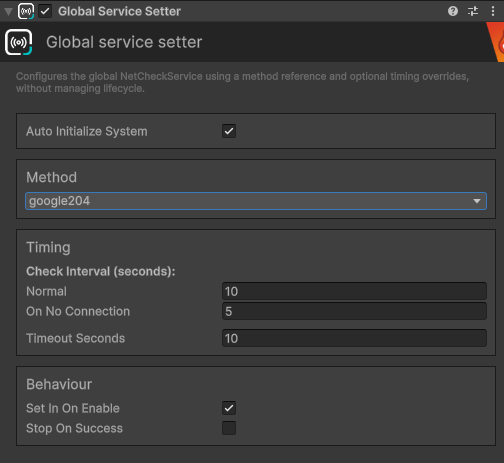
If you prefer to use a component in one of your scenes, you can also add the EazyNetCheckerGlobalServiceSetter to a GameObject.
This component will set the global service to the one you assign in the inspector when the scene starts and your game object is enabled.