

#
📋 Upgrade from 1.x to 2.x
This guide will help you smoothly transition from EazyNetChecker version 1.x to the new and improved version 2.x.
Version 2.x introduces a complete overhaul of the internal architecture, bringing enhanced performance, scalability, and maintainability. Hence, there are some API breaking changes that require adjustments in your existing code, as well as reconfiguration of your check methods.
#
📦 Update package
Before updating:
- Backup your project before proceeding with the update.
- Follow the Installation and Setup instructions from the Getting Started guide to import and set up the new version into your project.
First, make sure you updated EazyNetChecker to the latest version 2.x from the Unity Asset Store. This will replace the old files with the new ones. However, it is possible for the old files to remain in your project if you previously edited them or moved them around. Make sure to delete all old EazyNetChecker files from your project to avoid any conflicts.
After updating, you should not have any new compilation errors in your project. If you do, please make sure you already deleted old EazyNetChecker scripts.
All new files should be under Assets/Hellmade Games/Eazy NetChecker, if you haven't moved them.
#
⚙️ Migrate your check methods
The new version 2.x uses a different format for defining and storing custom check methods. In order to migrate your existing methods, you will need to migrate them to the new system. Fortunately, that process is very easy using the Legacy method migration tool.
First, open the migration tool by navigating to Window > Hellmade Games > Eazy NetChecker > Legacy methods migrator.
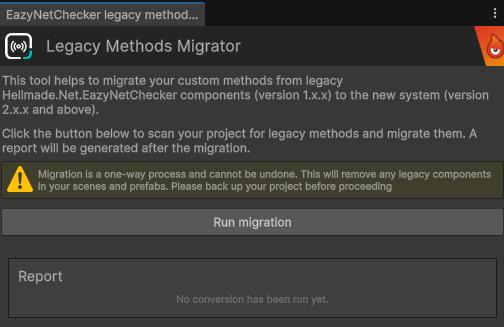
This tool will scan your project for any existing custom check methods from version 1.x, and recreate them in the new format. Just click 'Run migration' to start the process.
The migration process will delete all legacy EazyNetChescker components and methods from any prefab or scene in your project.
This process might take a few moments depending on the size of your project. After the migration is complete, you should see a brief report of how many methods were migrated or skipped.
You should now be able to see your migrated methods in the EazyNetChecker Editor Window under the 'Methods' tab.
#
🛠️ Update your code
The API in version 2.x has changed significantly compared to version 1.x. You will need to update your code to use the new API. Unfortunately, there is no automatic way to do this, so you will need to manually update your code.
The legacy code is still available in the package under the Legacy folder, so it does not immediately break your project.
However, it is set as obsolete and will be removed in future versions, so it is highly recommended to update your code as soon as possible.
To help you identify what code you need to update, you can enable compiler errors for obsolete EazyNetChecker code. To do that, open the main window and go to the 'Settings' tab. There, you will find an option to enable obsolete code errors.
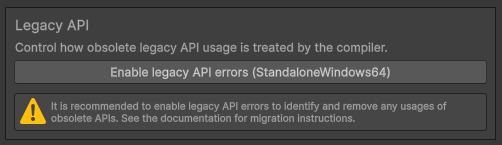
Once enabled, Unity will recompile your project and show errors for any usage of obsolete EazyNetChecker code.
#
What has changed?
Here are some of the main changes you will need to address in your code:
- The main facade class
EazyNetCheckeris now a static class, acting as a convenience layer on top of an instance-based system. - Different kind of methods are now represented by different classes, such as
HttpCodeNetCheckMethodandHttpContentNetCheckMethod. They all share theINetCheckMethodinterface. Check the Methods guide for more details. - Checks are not run by the method itself anymore. Instead, you create a
NetCheckServiceinstance using a method, and then use the service to run checks. Check the Services guide for more details. - Events and callbacks have been restructured. Check the Services guide and GLobal Events guide for more details.